

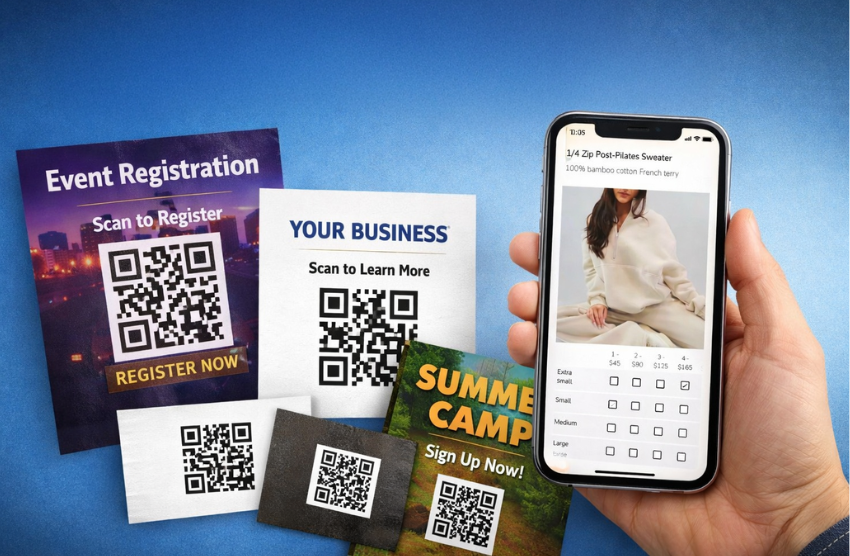
Sharing your Google Form is easy with a link, but sometimes you want a faster, more accessible way for people to open it. QR codes are a simple solution. They can be used to share any webpage — including a Google Form — and can be printed on posters, flyers, event signage, or business cards. They’re also easy to include in emails, social media posts, and newsletters. When someone scans the code with their phone, it instantly opens your form without them needing to type in a long URL.
QR codes make it incredibly easy for people to access your Google Form in person. Instead of typing a long link, users can simply scan a code with their phone and open the form instantly.
In this guide, we’ll show you how to create a QR code for your Google Form in just a few minutes.
Step 1: Create or Open Your Google Form
Start by creating your form in Google Forms or opening an existing one.
You can use Google Forms for many purposes, including:
- Event registrations
- Surveys and feedback
- Volunteer sign-ups
- Order forms
- Camp or program registrations
If you need to collect payments along with form responses, you can also connect your form to the Payable Forms add-on, which allows you to attach prices to questions and accept payments after submission.
Once your form is ready, the next step is to get the form link.
Step 2: Copy Your Google Form Link
At the top right of your form, click the Copy responder link button.
You’ll see the shareable URL displayed, an option to shorten the URL, and the option to easily copy that link.
Click Copy to copy the form link to your clipboard.
Now you’re ready to generate your QR code.
Step 3: Generate a QR Code
If you’re using Google Chrome, simply plug your shareable URL into your browser, and right-click your form page and select Create QR Code for This Page to generate one instantly.

Alternately, there are many free QR code generators available online. Simply paste your Google Form link into one of these tools and it will generate a scannable code.
Once generated, download the QR code image.
Step 4: Share Your QR Code
Your QR code can now be added anywhere you want people to access your form quickly.
Common places to use it include:
- Posters or flyers
- Event signage
- Registration desks
- Printed programs
- Emails or social media posts
When someone scans the code with their phone camera, it will open the Google Form automatically.
This makes the sign-up process much faster and easier.
Optional: Collect Payments Through Your Form
If your form is being used for registrations, ticket sales, or orders, you may also want to collect payments.
The Payable Forms add-on lets you connect payments directly to your Google Form. After someone submits the form, they’re taken to a secure payment page where they can complete their purchase.
Combined with a QR code, this creates a simple workflow:
Scan QR code → fill out the form → complete payment.
It’s a quick way to accept registrations and payments without needing a website or custom checkout system.
Sharing your Google Form with a QR code is a great way to connect with your network over physical mediums—be it postering your neighborhood, printing business cards, event materials. If you’re collecting event registrations, feedback, or payments through Payable Forms, QR codes are a simple way to make your form more accessible and convenient to use.
Watch our tutorial video to see the live-action steps to generating a QR code for your Google Form.